Tuesday, June 29, 2010

Hashtab is great


During the Webinar Joe spoke about Hashtab to easily calculate a files fingerprint. It is possible to allow a file based on it's checksum (SHA-1), but how to calculate it?

Install Hashtab, than right-click the required file, and click the tab "Hash Values". Right-click the Hash Value of SHA-1, an choose Copy. Now you can paste it into ePO while creating an allowed Binary, or do it locally through the CLI. Offcourse the fingerprint can also be used to blacklist a certain file.

sadmin auth -a -c 2F6D10AF4CA263B762BA5749827017D4

Webinar by Joe McMahon

Today Mr. Joe McMahon of McAfee presented a webinar for Medusoft's customers on SolidCore products, specifically about Application Control. We recorded it and it is available for download from Medusoft's website:

Webinar Application Control.

Heatwave

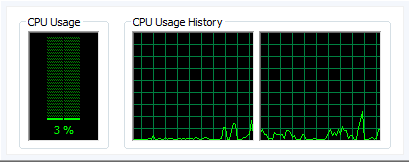
Yesterday I got so frustrated with my laptop! It was in my docking station at home and at one point it started to run at high CPU usage, like continuously 100%. I watched my task manager to find out there really wasn't one application causing this but several in turn. So I started to get worried this had something to do with Application Control, which from my point of view is basically keeping an eye on every application. So first I enabled the update mode CLI "sadmin bu" (shortcut for begin-update) with no result. Than I even disabled it alltogether, CLI "sadmin disable". This required a reboot after which high cpu usage started again, so no result as well.

I couldn't figure out what was happening, so I took out the laptop from my dock, and that was when I felt it: HEAT! It was ready to bake an egg on it... After a while of working on it outside the dock the fans did their work and it cooled down. After which the CPU usage itself also turned back to like 3%. Conclusion: False Alarm :)


I have re-enabled it by CLI "sadmin enable" (both enable and disable require a reboot by the way). The software still hasn't let me down yet. You can imagine I am waiting for the moment I come across an issue but it still did not occur...

Back to work :)

Thursday, June 17, 2010

Discovering the CLI

Suddenly I remembered I didn't install UltraEdit yet, my favorite text editor. I realized I came across a Command-Line Interface reference somewhere and decided to go and find out how this CLI could be used for one-time installations. And guess what: it worked out fine :)

These are the steps I took to be able to install UltraEdit:
1. Allow access to CLI (Is restricted by default, needs to be opened up using an ePO task)
2. From CLI: "sadmin begin-update". This enabled the update mode locally
3. Installed the software
4. From CLI: "sadmin end-update"

Using "sadmin help" shows instructions on the available commands, but there is also a comprehensive pdf available covering the CLI.

I am still thinking what the real risk level would be of keeping the CLI opened up continuously. I guess it is a risk that shouldn't be taken, and as opening up the CLI can only be done from ePO I guess to install new software that is not allowed fromone of the exception rules requires you to logon to ePO and open up the CLI from there.

Furthermore I found there is a bit of a flaw to installations that are distributed as an .msi, such as UltraEdit. Before I used the CLI, I tried to install it from a trusted (local) directory by double clicking the .msi. My Trusted Directory however did not have any effect because an .msi file is run by msiexec.exe, which offcourse is not stored in this trusted local directory. Application Control thus still blocked the installation.

Wednesday, June 16, 2010

What to do at one-time emergency installation?

Yesterday I was at-the-office and for some reason my Domain Policy kicked in and first removed my Microsoft Office installation, afterwards trying to deploy it again. The deployment failed partially ending up in a misconfigured installation. I tryed to figure out what specifically was blocked from the Windows Eventviewer and ePO. They both indeed held the blocking events. But when I used the logged info to allow the installation (again by trusted directory) after a reboot it still was blocked.

Because I had limited time at that moment I went looking for a way to temporarily disable Application Control, and found that there is quite a nice way to do so: in ePO there is a client task type named "SC: Start Update Mode" and "SC: End Update Mode". They pretty much do what they say, Update Mode being a time window in which one is allowed to make changes to the system, so after starting the update mode on my computer I was simply able to recover the Office installation and it's running smooth now.

Afterwards I offcourse "ended" the Update Mode, and I will try to find out what is a more comprehensive way to allow AD deployed software.

Monday, June 14, 2010

It Works

After the Solidifying was complete, I received a pretty decent popup message that the McAfee Administrator initiated a reboot. I could only close that message and afterwards the reboot occured.

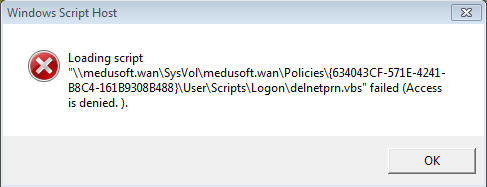
After the reboot I logged in back onton the domain and everything seemed ok, until i received the following error:
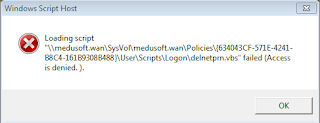


Obviously the domain I login to, enforces a certain logonscript, which is pretty common behaviour within a domain. Because it was a script that is not a part of my local (solidified) computer, it was disallowed. This clearly is a false positive so it requires my first well thought through exception :)

When defining an exclusion rule it is important to decide what type of exclusion best fits your needs. The following types are available:
- Updater (a process that is allowed to update other processes, such as Windows Update)
- Binary (a process specified by its hash value)
- Trusted User (a local or domain user)
- Publisher (the software vendor recognized by their digital signature, eg "Microsoft")
- Trusted Directory (a certain location where only trusted files recide)
- Installer (a process that is allowed to install new software, such as Altiris)


In this particular case I have decided that Trusted Directory best suits my needs. I also see that if looking at targeted attacks the knowledge of these exclusions should only be available to a limited amount of coworkers, but that is possible in ePO quite easily.

Installed & Enabled

Ok, after obtaining the supported version of SolidCore (5.0.2.6702) for my OS (win7 x64) I have now rolled out the software to my laptop.

First of all I needed to created a deployment task in ePO, which is similar to rolling out software like VirusScan, for the ones who are familiar with ePO. But than it appeared that the software is disabled by default and will only be enabled after telling it to do so. This is different from VirusScan deployment, the downside is that you need to be aware of it and have to create another client task, the upside is that Rolling Out and Enabling can each be done in phases. Luckily a proper "Getting Started Guide" is available providing a step by step guide to properly run Application Control on the endpoints.

After enabling the software it started to "Solidify" my computer, which basically means that it created the snapshot I mentioned earlier. Apparently the software requires a reboot when the scan is complete. I have checked the box that the reboot can be performed immediately, but it is also possible to disable the automatic reboot and simply wait for the user to reboot.

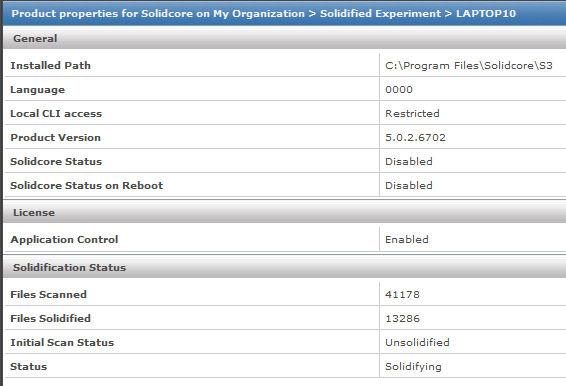
At this point the software is still running. SCSRVC.exe is the process which obviously is doing the job running at 30-40% CPU time. That's quite a lot but I think this just is during the Solidifying phase. Meanwhile the McAfee Agent has reported back that my computer has SolidCore installed and is currently Solidifying my system.

I have made no changes besides the enabling of the software. So all McAfee Default policies are still active. If I am correct this will lead to a working environment after reboot, onto which nothing new can be installed. It than comes down to creating the proper exceptions offcourse, because I still need to install some stuff :)